





Access control
Contents
PostHog's access control system allows you to manage permissions at three levels: organization, project, and resource. This hierarchical approach provides granular control over who can view and edit different parts of PostHog.
Levels of access control
1. Organization level
Organization members can have one of three access levels, which determine their permissions for organization-wide settings and actions.
The three access levels are: Member, Admin, and Owner. An organization must have at least one Owner but can have more than one.
| Permission | Member (base level) | Admin | Owner |
|---|---|---|---|
| Viewing and querying project data | ✔ | ✔ | ✔ |
| Accessing billing management** | ✖ | ✔ | ✔ |
| Managing reverse proxies | ✖ | ✔ | ✔ |
| Creating and deleting projects | ✖ | ✔ | ✔ |
| Managing project access controls (see more below) | ✖ | ✔ | ✔ |
| Changing authentication settings (SAML, SSO settings, 2FA enforcement, etc.) | ✖ | ✔ | ✔ |
| Changing organization settings (name, logo, etc.) | ✖ | ✔ | ✔ |
| Managing RBAC Roles (creating, editing, deleting, changing members, etc.) | ✖ | ✔ | ✔ |
| Inviting new members (only for current level or below)* | ✔ | ✔ | ✔ |
| Managing members (changing roles, removing, etc.) | ✖ | ✔ | ✔ |
| Leaving an organization | ✔ | ✔ | ✖ |
| Transferring organization ownership | ✖ | ✖ | ✔ |
| Deleting an organization | ✖ | ✖ | ✔ |
*This permission is configurable and can be disabled for members by organization admins and owners.
**We can give members read-only access to the Usage and Spend tabs, without the rest of billing. Contact support to set this up for your organization.
Access levels can be viewed and changed in the Members section of organization settings.
2. Project level
At the project level, there are two access levels: member and admin.
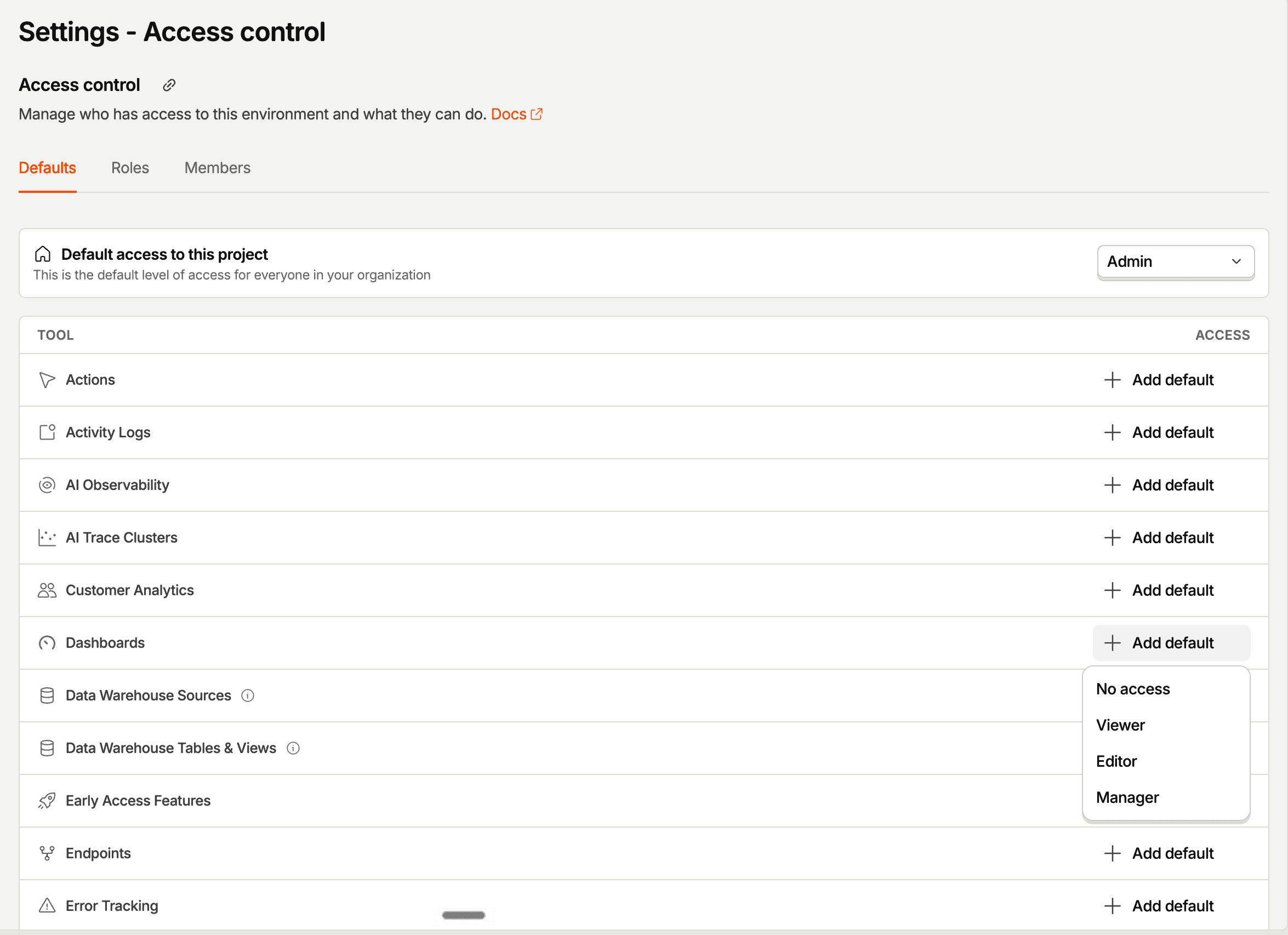
Each project has a default access level that applies to all organization members. The default access level can be one of these three options:
- No access – Members need explicit permission to access the project
- Member – All organization members have member-level access
- Admin – All organization members have admin-level access
You can override the default access level for specific members or roles. A user's effective access level is the highest level granted from any source.
Organization owners and admins automatically receive project admin access.
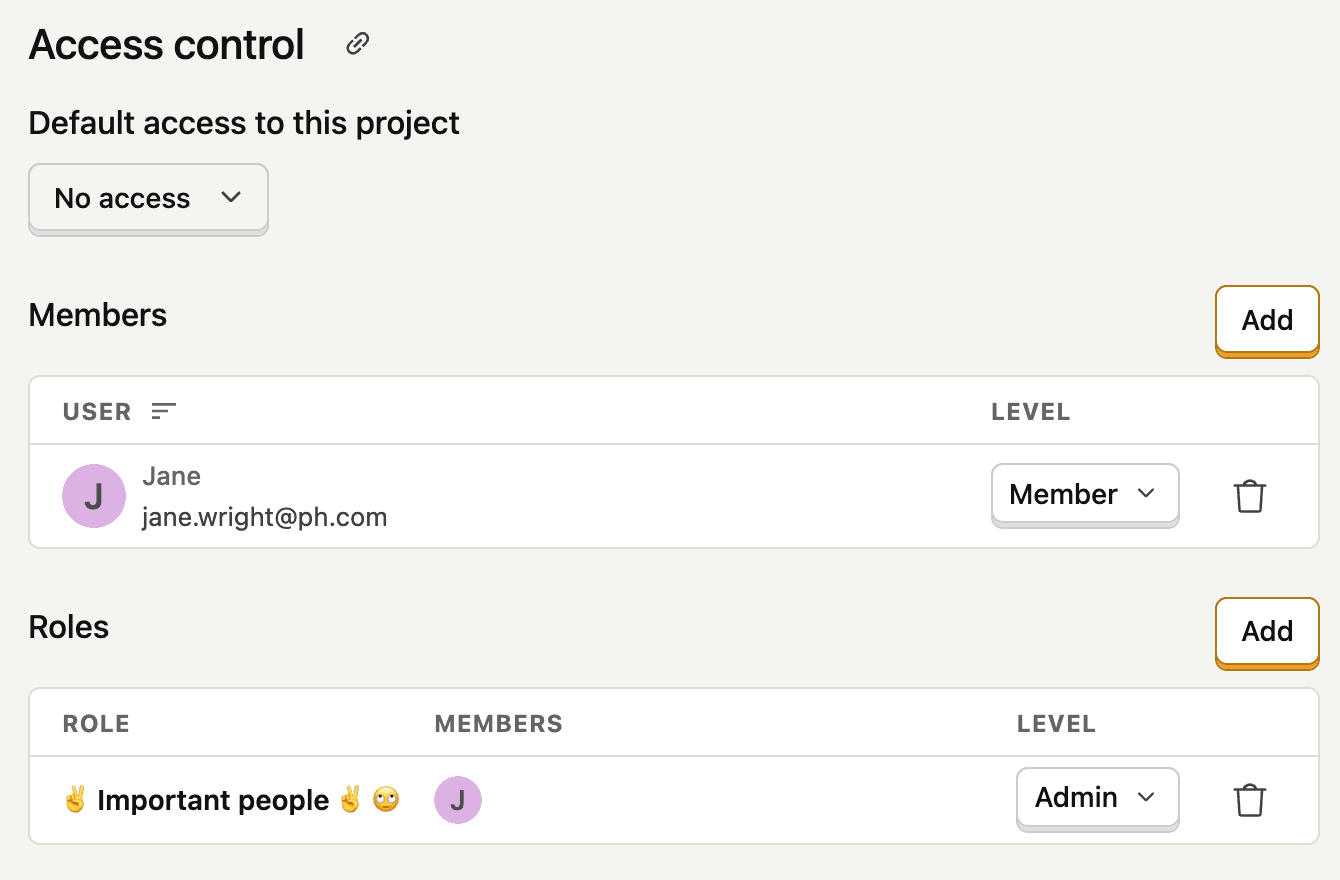
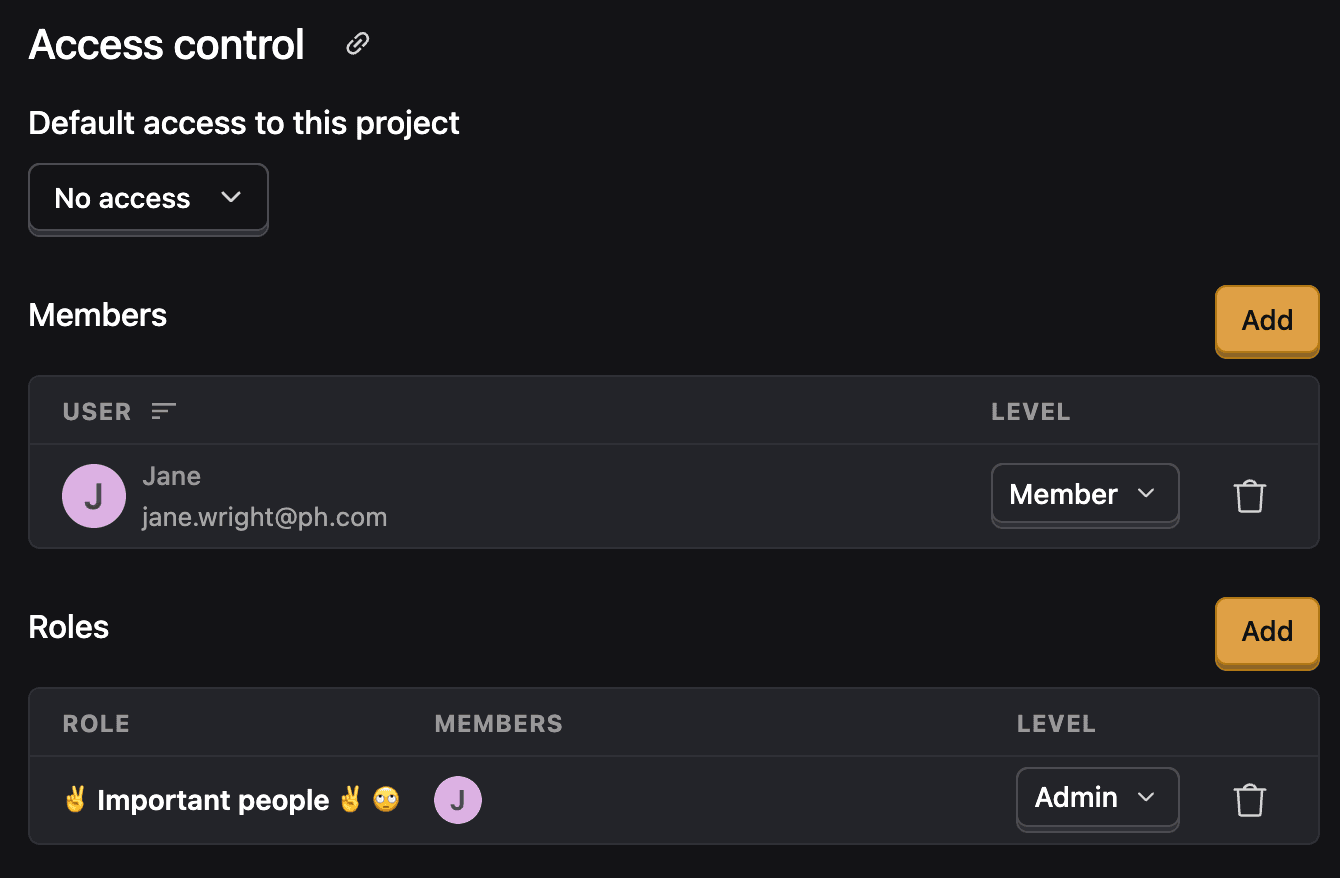
See the table below for a summary of project-level permissions:
| Permission | Member | Admin |
|---|---|---|
| Manage project access controls | ✖ | ✔ |
| Delete project | ✖ | ✔ |
| Edit project settings | ✖ | ✔ |
| View/edit own or permitted resources (based on resource-level access controls) | ✔ | ✔ |
3. Resource level
Resource access controls enable you to control who can view and edit specific resource objects. These can be accessed by clicking the Access control sidebar button when viewing a supported resource.
Currently, resource access controls are available for:
- Actions
- Activity logs
- Customer Analytics
- Dashboards
- Early access features
- Endpoints
- Error tracking
- Experiments
- Exports
- Feature flags
- Heatmaps
- Insights
- LLM analytics
- Logs
- Managed data warehouse sources
- Warehouse tables and views
- Notebooks
- Session recordings
- Surveys
- Traces
- Toolbar
- Web analytics
- Workflows
- (more resource types coming soon – looking for others? Let us know!)
Resource access controls limit who can open product surfaces in the UI or execute the corresponding MCP tools.
Queries to the core PostHog tables (events, sessions, persons, groups) through the SQL editor or MCP still work. To prevent queries from returning sensitive event or person properties (for example, email), configure property access control.
Resource access controls have four possible access levels:
- No access – Cannot view or edit the resource
- Viewer – Can view but not modify the resource
- Editor – Can view and modify the resource
- Manager - Can change metadata about the resource like access controls
There are two ways to set resource-level access controls:
a. Individual resource object (object access controls)
These settings allow you to control who can view and edit a specific resource object. You can access these controls via the project's access control settings.
By default, new resources are set to "Editor" access. Users with appropriate permissions can modify this default and set specific permissions for members and roles.
Resource creators, organization admins, and users with "Manager" access can always view and edit resources, as well as manage their access controls.
You cannot set resource-level access controls for organization admins, as they always have full access.
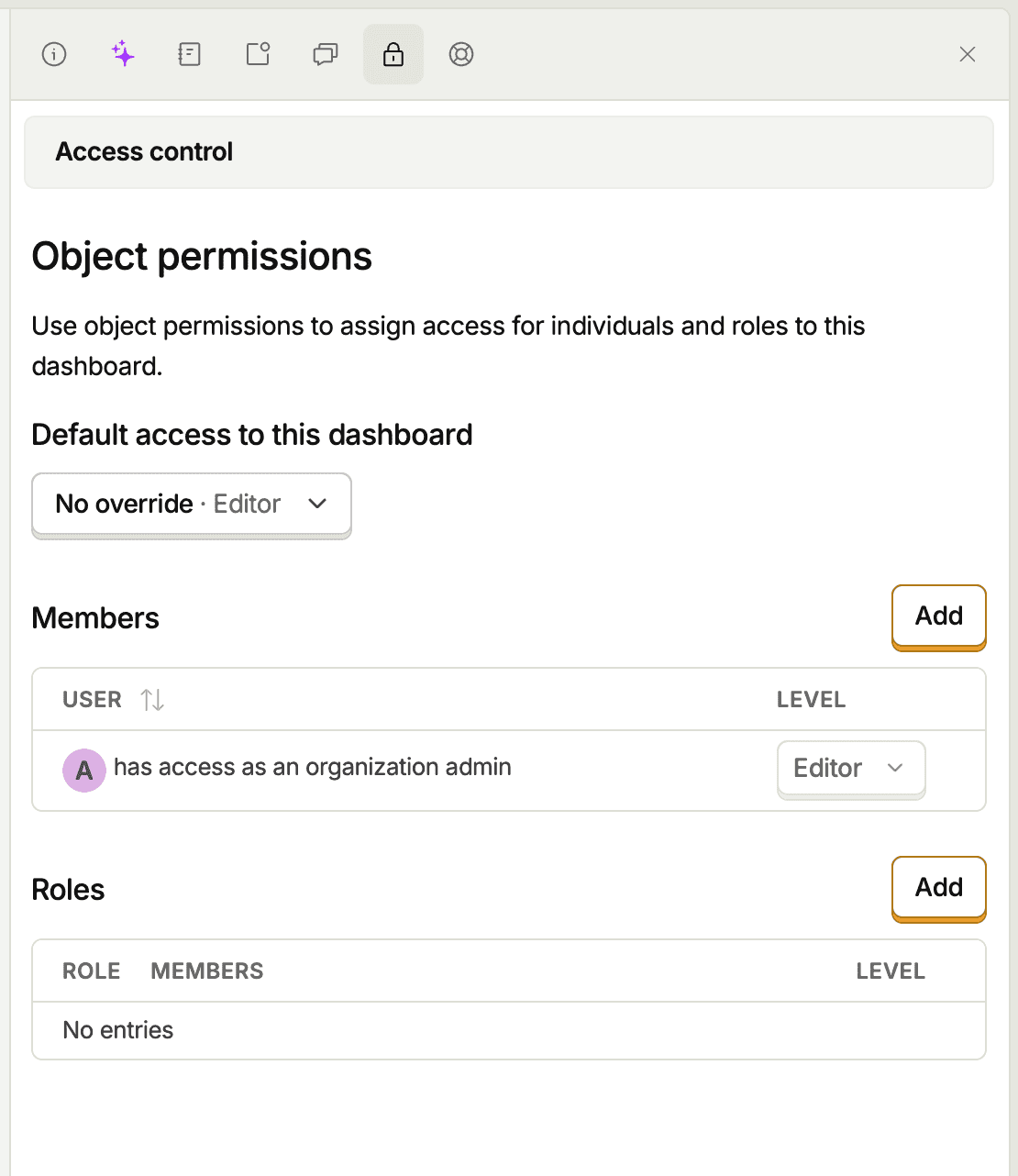
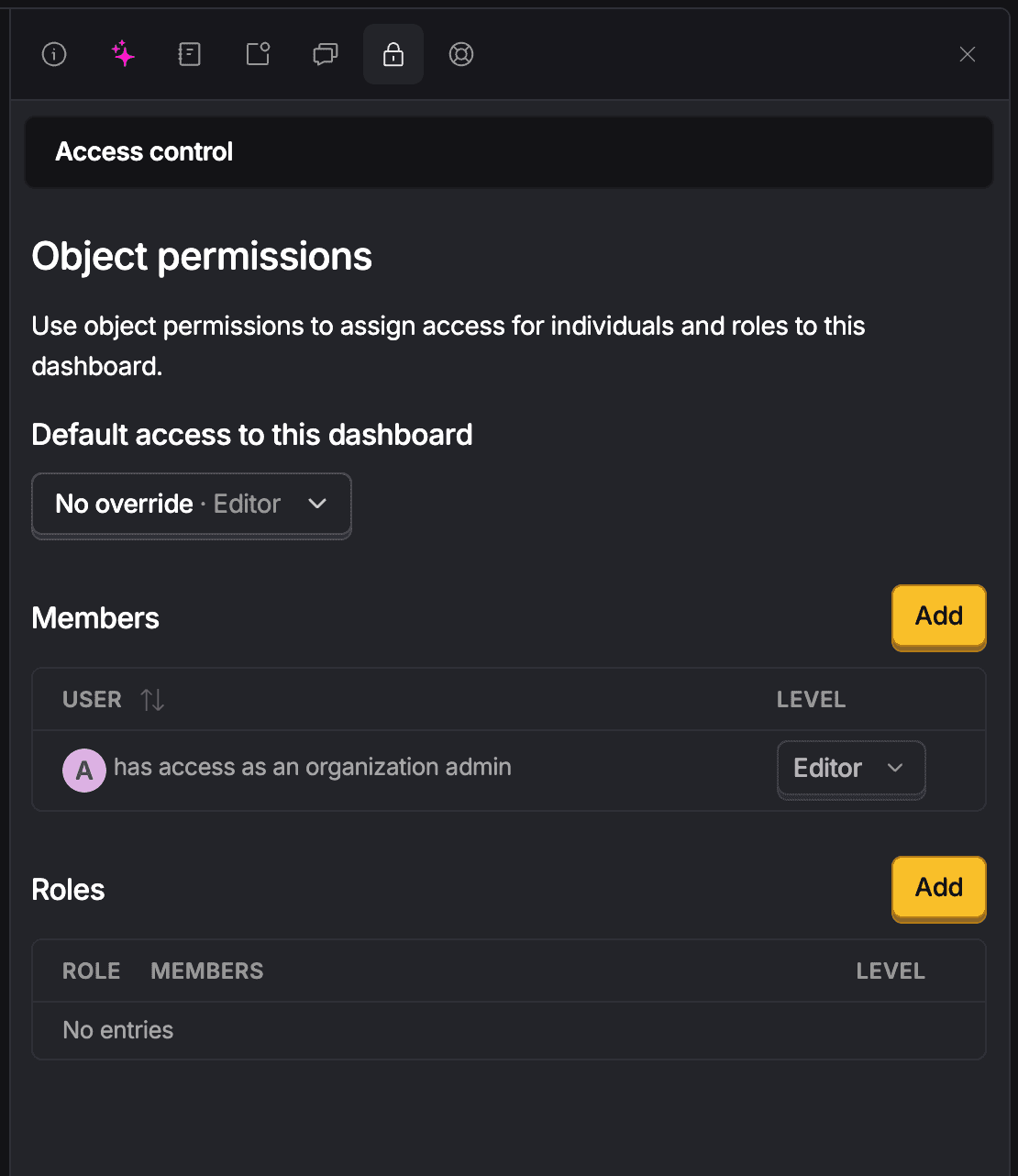
Each project can have up to 1,000 objects per resource type with individual access controls. For example, you can set custom access controls on up to 1,000 dashboards, 1,000 insights, and so on. If you need a higher limit, contact support.
b. All resource objects of a given type in a project (resource access controls)
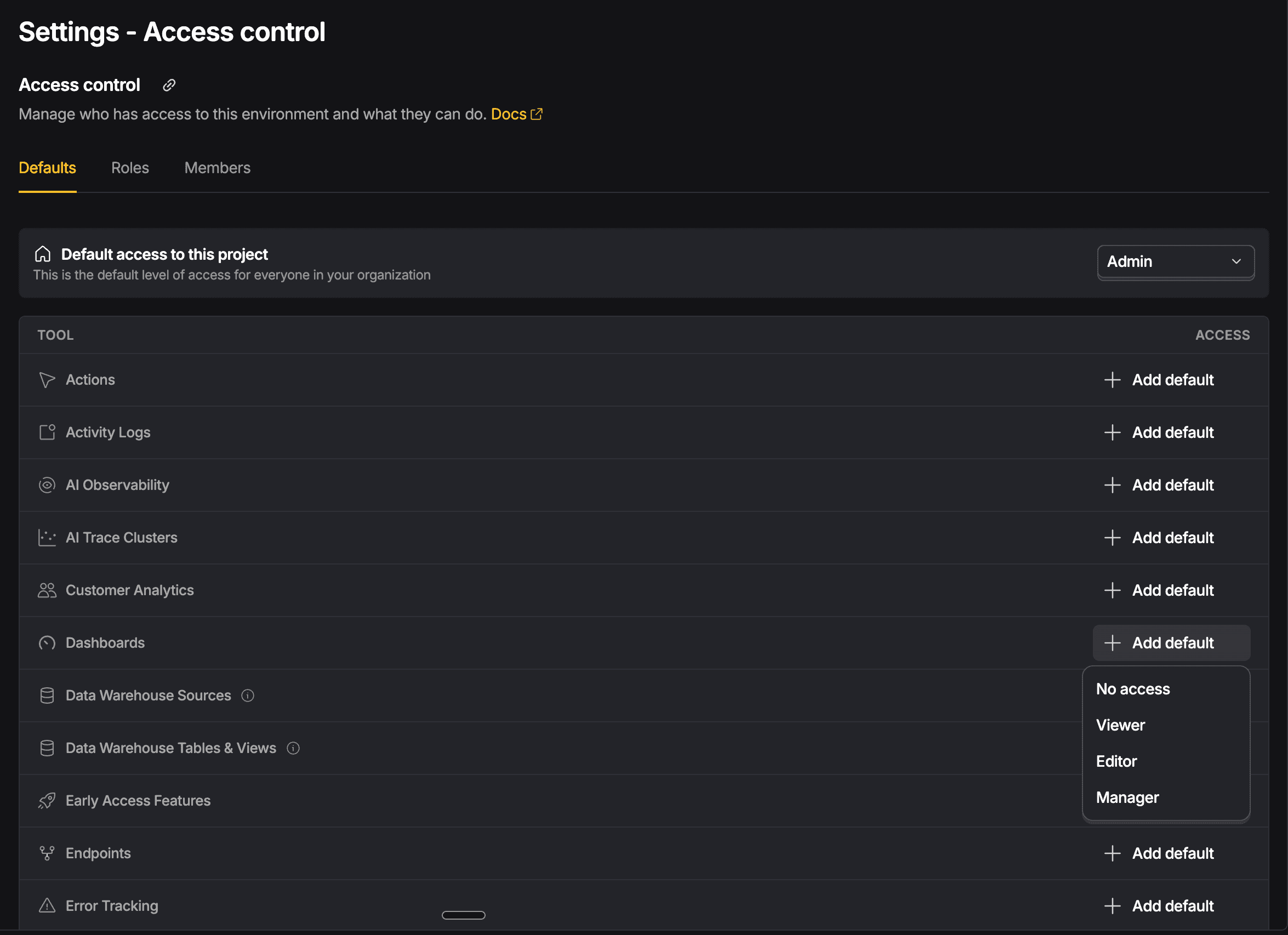
These settings allow you to control who can view and edit all resources of a given type within a project. These controls are set at the project level.
You can set default access levels for all resources of a given type in a project. This allows you to set it once and apply it to all resources of that type in the project (past and future).
Individual resource object access controls for specific users or roles take precedence over resource-level access controls.
You cannot set resource-level access controls for organization admins, as they always have full access.
Warehouse access control
When you connect external sources to PostHog through the Data Warehouse, you can configure who can query the data synced into PostHog. Apply access controls to all sources or to a specific one, table, or view. See warehouse access control for details.
Property access control
Event or person data may contain sensitive properties (for example, email addresses). To prevent someone from exporting your entire user base, configure property access control.
When a property is restricted, explicit reads return NULL, and results that include all properties omit it. This applies in both the SQL editor and MCP.
How object access control precedence works
When determining what a user can access for a specific resource object, PostHog checks permissions in this order (highest priority first):
- Specific object permissions - Direct access granted to a specific resource object (e.g., Amy can edit Dashboard X)
- Resource type permissions - Access set for all resources of a type (e.g., Customer Support role can view all Notebooks)
- Default object permissions - Default access that applies to a resource object (e.g., Insight Y has view access by default)
Note: Resource creators and organization admins always have full access, regardless of these precedence rules.
Common use cases
Here are some practical examples of how to configure access controls for different scenarios:
Contractor with access to only one dashboard
Scenario: You want to give a contractor access to view only a specific dashboard without access to other project resources.
Setup:
- Set resource-level access controls to "No access" for all resource types for the contractor
- Give the contractor specific "Viewer" access to the desired dashboard
- The contractor will only see and access that specific dashboard
Country teams with role-based access
Scenario: You have teams organized by country and want each team to have edit access to their country's resources.
Setup:
- Create roles for each country team (e.g., "US Team", "UK Team")
- Add team members to their respective country roles
- Set resource-level access controls to "Viewer" for all resource types for each role
- Create country-specific dashboards and insights
- Assign each role "Editor" access to their country's resources
Private project for executives only
Scenario: You want to create a project that only executives can access.
Setup:
- Set project default access to "No access"
- Create an "Executives" role
- Add executives to the "Executives" role
- Give the "Executives" role "Admin" access to the project
- Only executives will have access to the project and its resources
Data scientist with limited access
Scenario: You want to give an analyst access to create and edit insights, but only view dashboards.
Setup:
- Set resource-level access controls to "No access" for all resource types for the analyst
- Give the analyst "Editor" access to all Insights (resource-level)
- Give the analyst "Viewer" access to all Dashboards (resource-level)
- The analyst can create and edit insights but only view dashboards
Hide PII from vendors
Scenario: You want to share your event data with vendors while restricting access to a property containing PII (e.g. email).
Setup:
- Create a role for the vendor (e.g. "Vendor", "External collaborator")
- Create a property definition for the property if one does not already exist, otherwise edit the existing definition
- Navigate to the "Roles" tab under the "Access control" section of the property definition page
- Find your vendor role and select "Add override"
- Select "No access"
- Save the property definition
- Any member with the vendor role will not be able to access the PII property
To restrict additional properties, repeat steps 2–6 for each one.
Feature availability
Free / Pay-as-you-go
These plans do not currently offer any access control features. All projects are open to all members and all resources are open to all members with "Editor" access.
Boost or Scale
The Boost and Scale packages include access controls for teams with stricter security requirements.
What you can do:
- Set default access levels for projects and resources
- Configure specific access levels for individual members (but not roles)
Enterprise
Note: While you can create roles on any plan, they can only be used for access control on Enterprise plans.
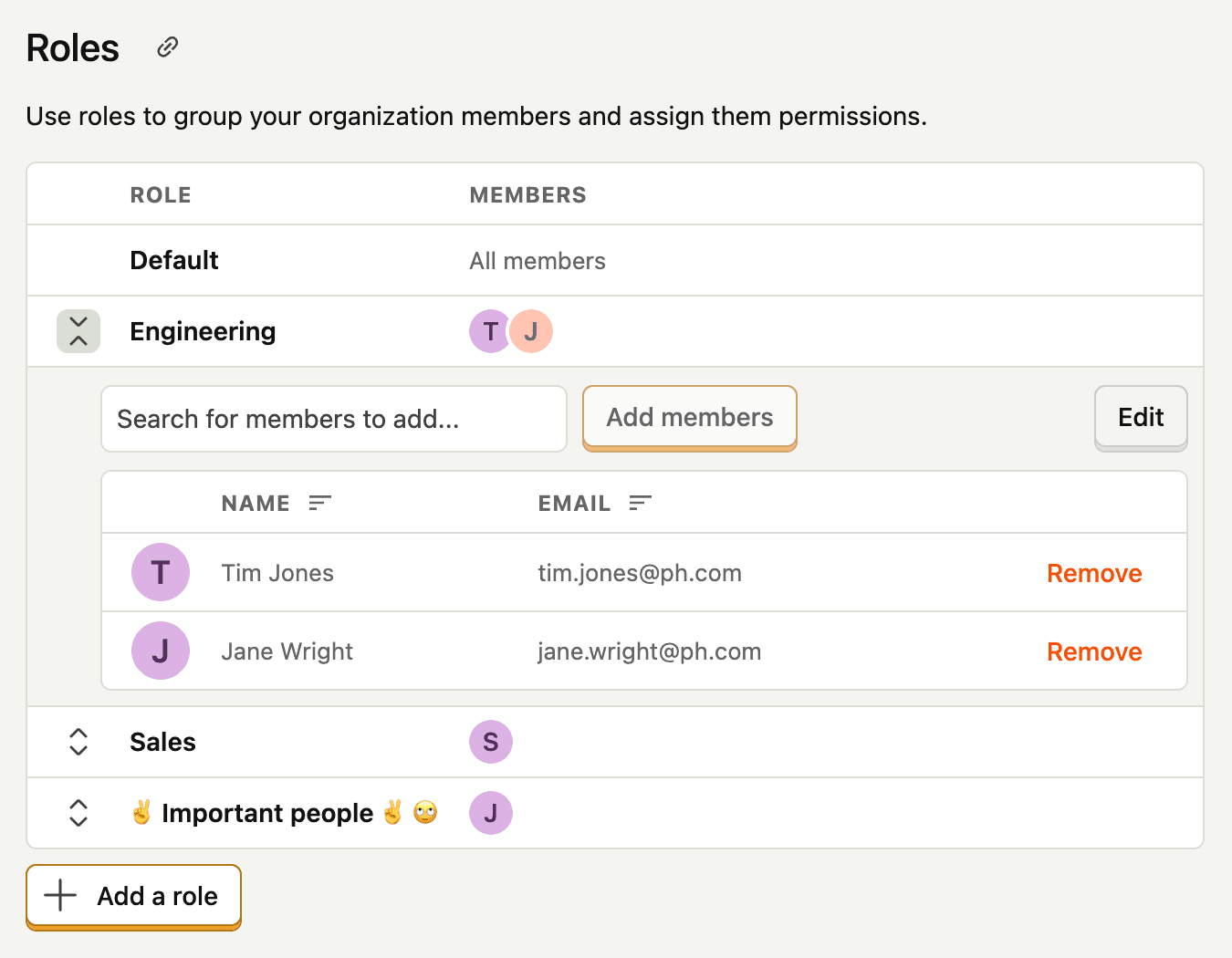
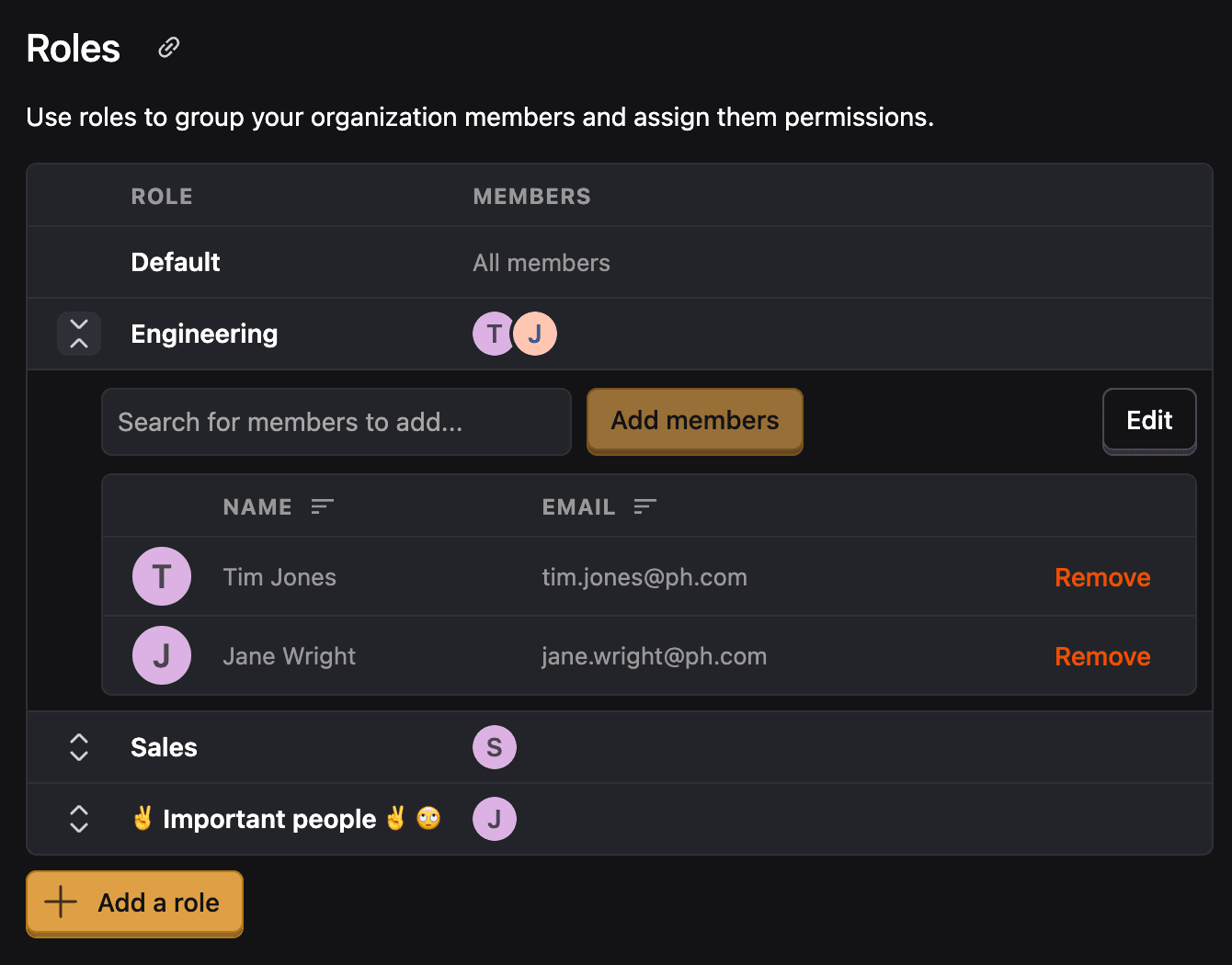
Enterprise plans include full access control capabilities with role-based access control (RBAC).
What you can do:
- Create roles to group users together
- Assign permissions to roles at both project and resource levels
- Manage permissions at scale instead of individually
API support
PostHog provides comprehensive API endpoints for managing access controls programmatically. This allows you to automate permission management and integrate access control into your workflows.
Authentication
To use the access control API endpoints, you need to authenticate using one of PostHog's authentication methods. Personal API keys require specific scopes:
- Read operations:
access_control:readscope - Write operations:
access_control:writescope
Available endpoints
Each supported resource type provides the following endpoints:
1. Object access controls
Endpoint: GET/PUT /{resource}/{id}/access_controls
This endpoint allows you to view and manage access controls for a specific objects. See above for more details on object access controls.
Example endpoints:
/api/projects/@current/dashboards/{dashboard_id}/access_controls/api/projects/@current/access_controls
2. Resource access controls
Endpoint: GET/PUT /{resource}/{id}/resource_access_controls
This endpoint manages project-wide access rules for all resources of a given type. See above for more details on resource access controls.
Example endpoints:
/api/projects/@current/resource_access_controls
3. Users with access
Endpoint: GET /{resource}/{id}/users_with_access
Returns a list of all users who have access to a specific resource, including their access levels and how they obtained access.
Example endpoints:
/api/projects/@current/dashboards/{dashboard_id}/users_with_access/api/projects/@current/users_with_access
Request and response formats
Getting object access controls
Request: GET /api/projects/@current/dashboards/{dashboard_id}/access_controls
Response:
Setting object access controls
Request: PUT /api/projects/@current/dashboards/{dashboard_id}/access_controls
Or with a role:
Note: You must specify either organization_member OR role, not both. To remove an access control, set access_level to null.
Getting resource access controls
Request: GET /api/projects/@current/resource_access_controls
Response:
Setting resource access controls
Request: PUT /api/projects/@current/resource_access_controls
Or with a role:
Note: You must specify either organization_member OR role, not both. If you want to set a default value for all members pass null for both organization_member and role.
Getting users with access
Request: GET /api/projects/@current/dashboards/{dashboard_id}/users_with_access
Response:
Access sources
When querying who has access to a resource, the API returns how each user obtained their access:
creator– User created the resourceorganization_admin– Organization admin privilegesexplicit_member– Direct member assignmentexplicit_role– Role-based assignmentproject_admin– Project admin privilegesdefault– Default project access level